> ## Documentation Index
> Fetch the complete documentation index at: https://doc.call24x7.ai/llms.txt
> Use this file to discover all available pages before exploring further.
# Quick Start
> Learn how to start using Call24x7.AI and make your first AI-driven Phone Agent

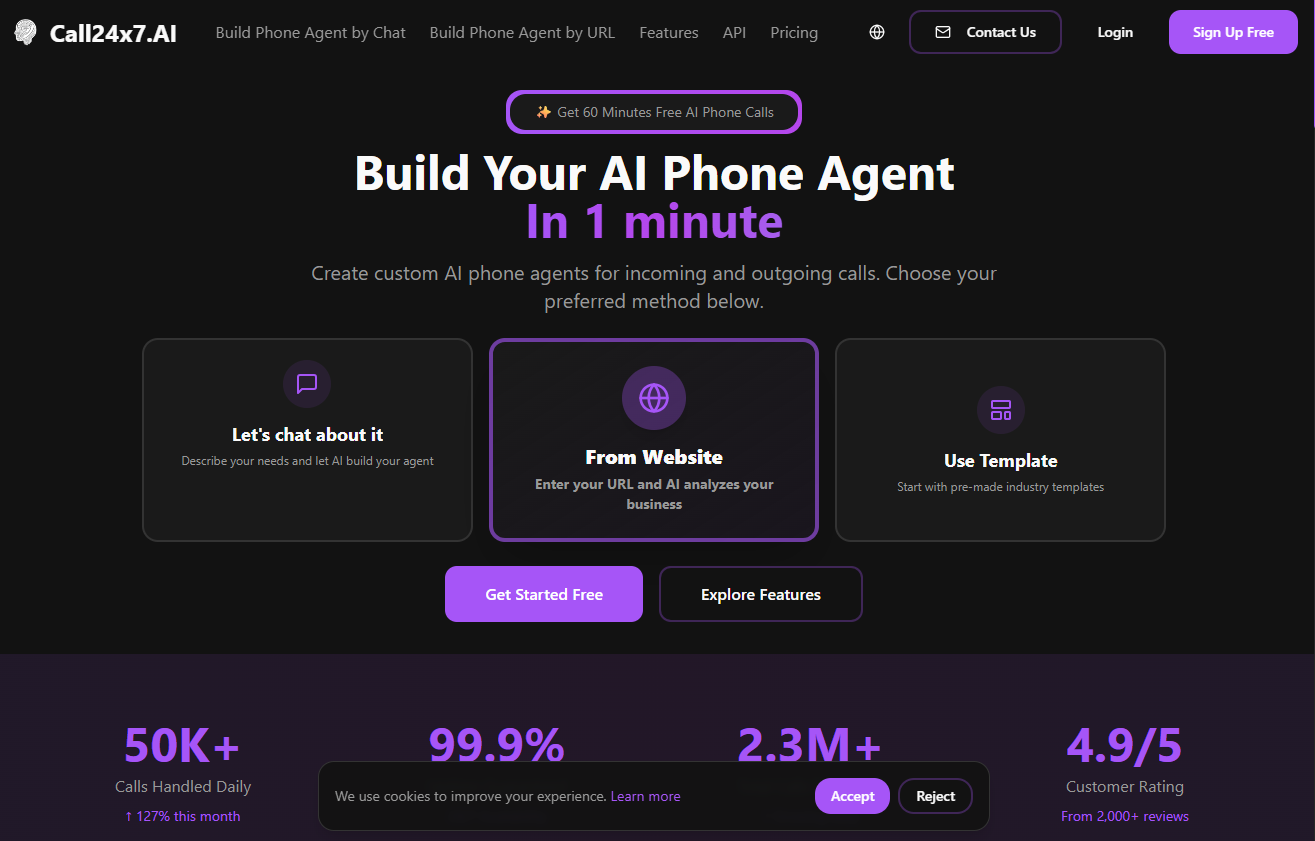 **Prerequisite**: Ensure you have a registered developer account with Call24x7.AI and an API key.
## Step 1: Creating Your Developer Account
Head to the Call24x7.AI [Developer Portal](https://manage.call24x7.ai) to create an account. Complete your details, verify your phone number, and access your account dashboard.
Once registered, navigate to the **Send Call** page to test sending a call directly from the portal.
```
# Replace "your_api_key_here" with your actual API key
export CALL24X7_API_KEY="your_api_key_here"
```
## Step 2: Sending Your First Phone Call
Our user-friendly portal lets you configure and test your calls right from the interface.
### Instructions
1. **Enter the Recipient’s Number**: Specify the target phone number for the call.
2. **Compose Your Prompt**: Write a personalized prompt or select an example for the AI agent to deliver.
3. **Send the Call**: Press "Send Call" to initiate. You’ll receive a confirmation when the call connects.
**Billing Note**: Calls are billed at \$0.15 per minute, with precise second-by-second billing.
## Step 3: Testing Your AI Call Agent
After placing your call, you can use our test suite to simulate various call scenarios and refine responses for high-quality interactions.
Access the testing environment, choose the language and model, and input your AI prompt.
Interact with the AI agent and test with diverse scenarios to evaluate response quality.
Update and adjust your prompt based on call responses to ensure clarity and relevance.
## Advanced Options
### Custom Ports
By default, the Call24x7.AI testing suite operates on port 3000. To use a different port, run the following command:
```bash theme={null}
call24x7 dev --port 3333
```
### Troubleshooting
If you encounter setup issues, consult our troubleshooting guide below.
## Deployment
Deployment is seamless! Unlimited editors are available under the [Pro Plan](https://call24x7.ai/pricing).
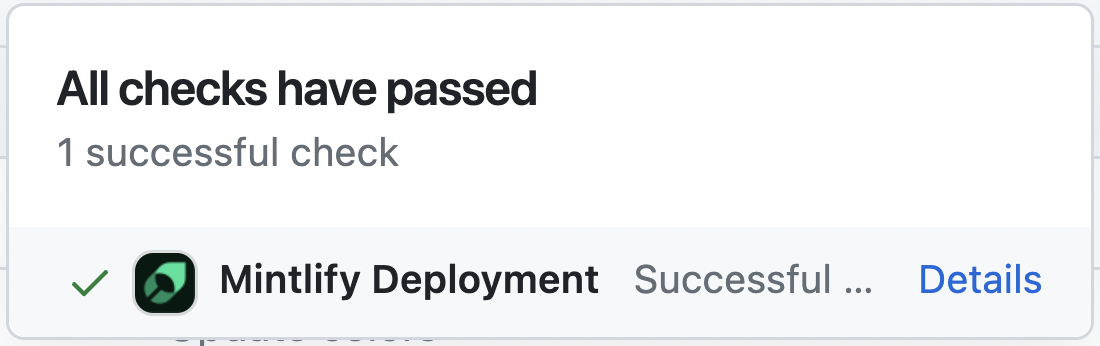
Once deployed, successful deployment will display the following confirmation:
**Prerequisite**: Ensure you have a registered developer account with Call24x7.AI and an API key.
## Step 1: Creating Your Developer Account
Head to the Call24x7.AI [Developer Portal](https://manage.call24x7.ai) to create an account. Complete your details, verify your phone number, and access your account dashboard.
Once registered, navigate to the **Send Call** page to test sending a call directly from the portal.
```
# Replace "your_api_key_here" with your actual API key
export CALL24X7_API_KEY="your_api_key_here"
```
## Step 2: Sending Your First Phone Call
Our user-friendly portal lets you configure and test your calls right from the interface.
### Instructions
1. **Enter the Recipient’s Number**: Specify the target phone number for the call.
2. **Compose Your Prompt**: Write a personalized prompt or select an example for the AI agent to deliver.
3. **Send the Call**: Press "Send Call" to initiate. You’ll receive a confirmation when the call connects.
**Billing Note**: Calls are billed at \$0.15 per minute, with precise second-by-second billing.
## Step 3: Testing Your AI Call Agent
After placing your call, you can use our test suite to simulate various call scenarios and refine responses for high-quality interactions.
Access the testing environment, choose the language and model, and input your AI prompt.
Interact with the AI agent and test with diverse scenarios to evaluate response quality.
Update and adjust your prompt based on call responses to ensure clarity and relevance.
## Advanced Options
### Custom Ports
By default, the Call24x7.AI testing suite operates on port 3000. To use a different port, run the following command:
```bash theme={null}
call24x7 dev --port 3333
```
### Troubleshooting
If you encounter setup issues, consult our troubleshooting guide below.
## Deployment
Deployment is seamless! Unlimited editors are available under the [Pro Plan](https://call24x7.ai/pricing).
Once deployed, successful deployment will display the following confirmation:
 ## Troubleshooting Guide
Ensure you have Node.js v18 or higher. Run `call24x7 install` and try again.
Navigate to the Call24x7.AI directory, remove the `.call24x7` folder, and rerun `call24x7 dev`.
For persistent issues, delete the `.call24x7` folder from your root directory and restart `call24x7 dev`.
## Next Steps
Now that you've successfully sent your first call and tested your AI agent, explore further with these resources:
Detailed API documentation for integrating and customizing calls.
Create custom tools to interact with external APIs live during calls.
Learn effective prompt strategies to achieve desired behaviors from your AI agent.
Connect with other developers and get support in the Call24x7.AI community.
Our support team is here to help! Visit our [Help Center](https://manage.call24x7.ai) or reach out directly for assistance.
## Troubleshooting Guide
Ensure you have Node.js v18 or higher. Run `call24x7 install` and try again.
Navigate to the Call24x7.AI directory, remove the `.call24x7` folder, and rerun `call24x7 dev`.
For persistent issues, delete the `.call24x7` folder from your root directory and restart `call24x7 dev`.
## Next Steps
Now that you've successfully sent your first call and tested your AI agent, explore further with these resources:
Detailed API documentation for integrating and customizing calls.
Create custom tools to interact with external APIs live during calls.
Learn effective prompt strategies to achieve desired behaviors from your AI agent.
Connect with other developers and get support in the Call24x7.AI community.
Our support team is here to help! Visit our [Help Center](https://manage.call24x7.ai) or reach out directly for assistance.