


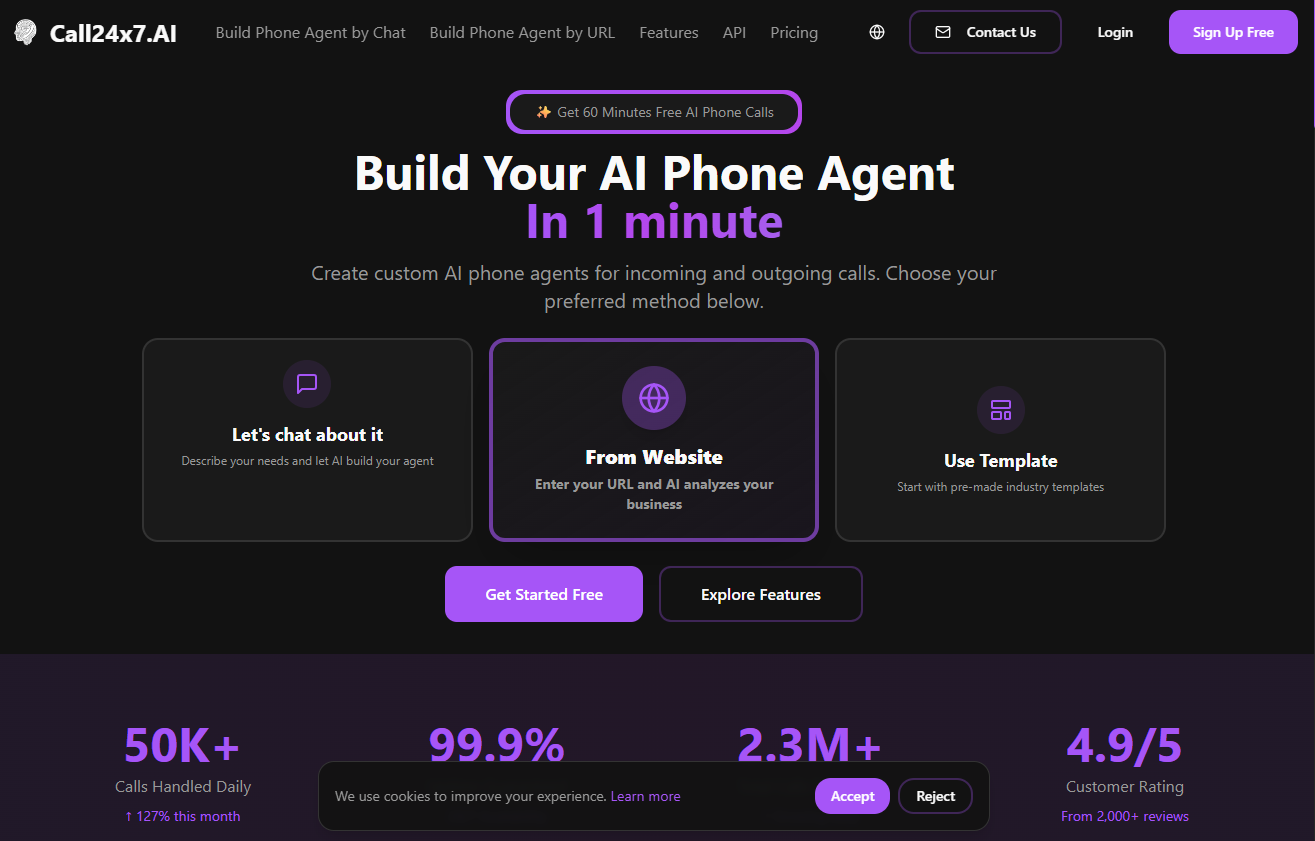
Prerequisite: Ensure you have a registered developer account with Call24x7.AI and an API key.
Step 1: Creating Your Developer Account
Head to the Call24x7.AI Developer Portal to create an account. Complete your details, verify your phone number, and access your account dashboard. Once registered, navigate to the Send Call page to test sending a call directly from the portal.Step 2: Sending Your First Phone Call
Our user-friendly portal lets you configure and test your calls right from the interface.Instructions
- Enter the Recipient’s Number: Specify the target phone number for the call.
- Compose Your Prompt: Write a personalized prompt or select an example for the AI agent to deliver.
- Send the Call: Press “Send Call” to initiate. You’ll receive a confirmation when the call connects.
Step 3: Testing Your AI Call Agent
After placing your call, you can use our test suite to simulate various call scenarios and refine responses for high-quality interactions.Set up Testing Suite
Access the testing environment, choose the language and model, and input your AI prompt.
Simulate Calls
Interact with the AI agent and test with diverse scenarios to evaluate response quality.
Refine the Prompt
Update and adjust your prompt based on call responses to ensure clarity and relevance.
Advanced Options
Custom Ports
By default, the Call24x7.AI testing suite operates on port 3000. To use a different port, run the following command:Troubleshooting
If you encounter setup issues, consult our troubleshooting guide below.Deployment
Once deployed, successful deployment will display the following confirmation: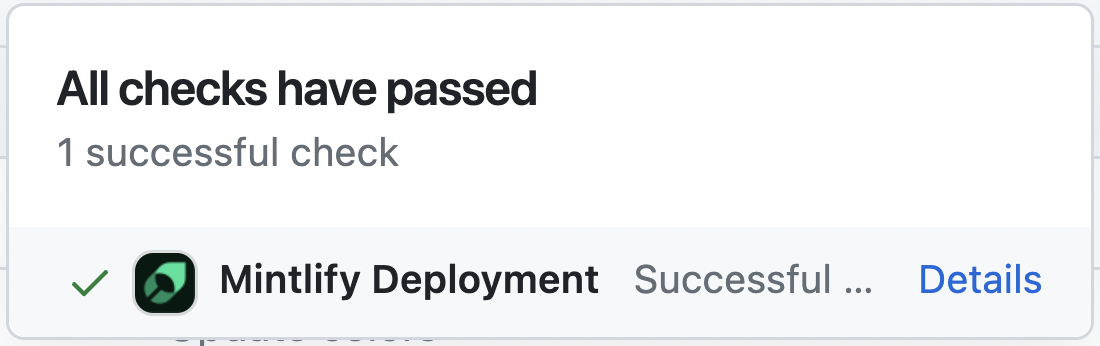
Troubleshooting Guide
Call24x7.AI is Not Loading
Call24x7.AI is Not Loading
Ensure you have Node.js v18 or higher. Run
call24x7 install and try again.Missing Directory Error
Missing Directory Error
Navigate to the Call24x7.AI directory, remove the
.call24x7 folder, and rerun call24x7 dev.Unknown Errors
Unknown Errors
For persistent issues, delete the
.call24x7 folder from your root directory and restart call24x7 dev.Next Steps
Now that you’ve successfully sent your first call and tested your AI agent, explore further with these resources:API Reference
Detailed API documentation for integrating and customizing calls.
Advanced Tools
Create custom tools to interact with external APIs live during calls.
Prompting Guide
Learn effective prompt strategies to achieve desired behaviors from your AI agent.
Community Support
Connect with other developers and get support in the Call24x7.AI community.